Run your Kaitoi workflows and nodes inside DaVinci Resolve Studio. Pick a clip, press Generate, and the result comes back on a new track above the original. Your cut is never changed.
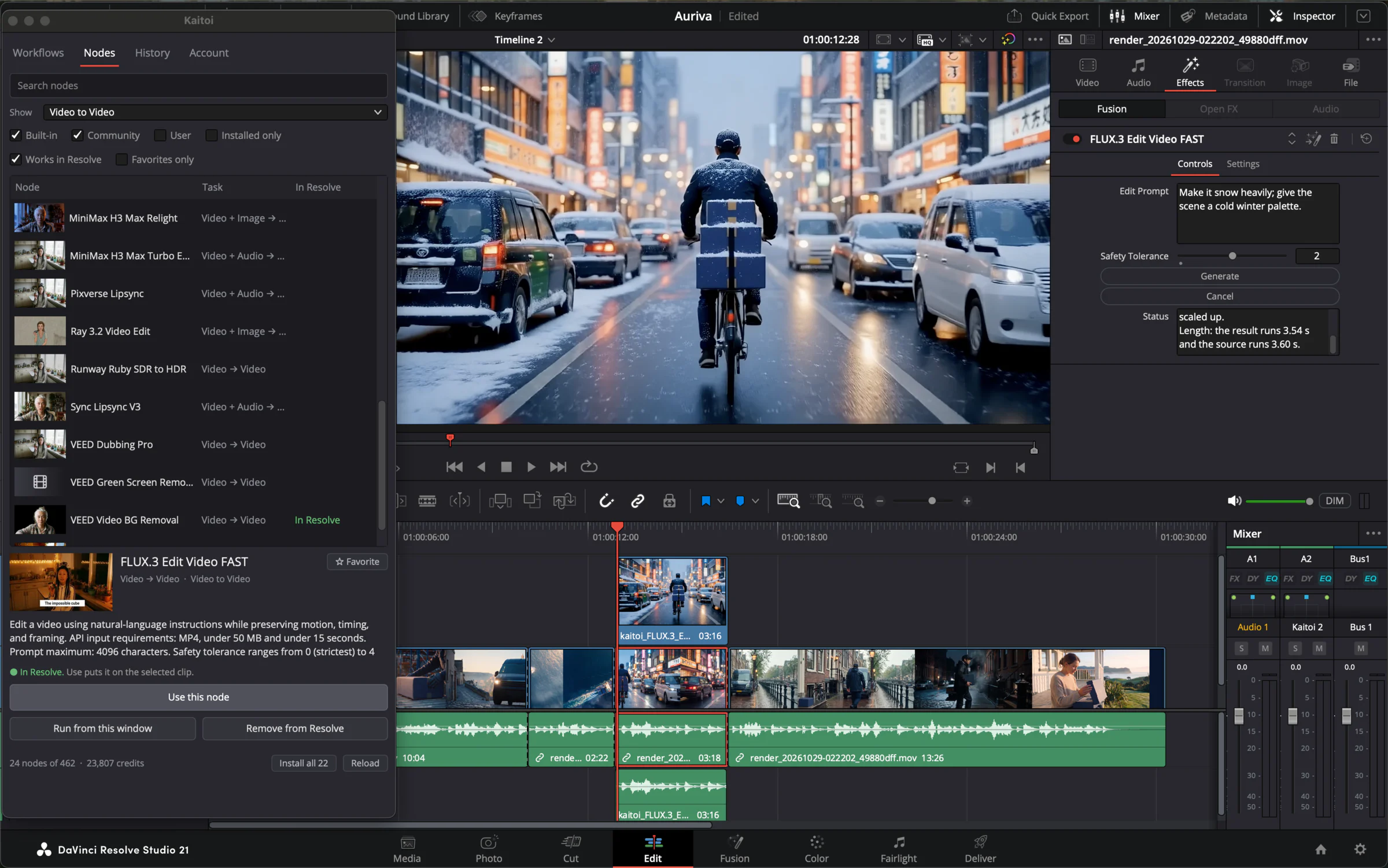
Your workflows, inside DaVinci Resolve
Your workflows and nodes
Every template in your Kaitoi account that has an API endpoint is listed under Workflows. Nodes lists Kaitoi's catalog: built-in nodes, community nodes and your own.
Run from the Inspector
A workflow or node can sit on a clip as an effect, with its inputs as real controls and a Generate button. Or press Run from this window and keep the timeline as it is until the result arrives.
Keep the cut intact
What the clip plays, with its trims, grade and effects, is what gets sent. The result goes on a Kaitoi track at the same place as its source. Switch the track off to compare.
Get Kaitoi for DaVinci Resolve
The plugin is free and open source, under the Apache 2.0 license. Runs that use paid providers cost Kaitoi credits.
Install the plugin
Download the installer for macOS or Windows and open it. Both are signed by Kaitoi Labs, and the macOS one is notarized by Apple.
Open it in Resolve
Restart Resolve, open a timeline, and choose Workspace > Scripts > Edit > Kaitoi.
Sign in and run
On the Account tab press Sign in with Kaitoi. Then select a clip, pick a node, press Run from this window, then Generate.
Needs DaVinci Resolve Studio and Python 3; the free edition of Resolve does not let plugins like this one run. Developed on Resolve 21. Linux is untested: install from the repository.
DaVinci Resolve is a trademark of Blackmagic Design.
Kaitoi for DaVinci Resolve
Run your Kaitoi workflows and nodes inside DaVinci Resolve Studio. Pick a clip, press Generate, and the result comes back on a new track above the original. Your cut is never changed.
Your workflows, inside DaVinci Resolve
Your workflows and nodes
Every template in your Kaitoi account that has an API endpoint is listed under Workflows. Nodes lists Kaitoi's catalog: built-in nodes, community nodes and your own.
Run from the Inspector
A workflow or node can sit on a clip as an effect, with its inputs as real controls and a Generate button. Or press Run from this window and keep the timeline as it is until the result arrives.
Keep the cut intact
What the clip plays, with its trims, grade and effects, is what gets sent. The result goes on a Kaitoi track at the same place as its source. Switch the track off to compare.
Get Kaitoi for DaVinci Resolve
The plugin is free and open source, under the Apache 2.0 license. Runs that use paid providers cost Kaitoi credits.
Install the plugin
Download the installer for macOS or Windows and open it. Both are signed by Kaitoi Labs, and the macOS one is notarized by Apple.
Open it in Resolve
Restart Resolve, open a timeline, and choose Workspace > Scripts > Edit > Kaitoi.
Sign in and run
On the Account tab press Sign in with Kaitoi. Then select a clip, pick a node, press Run from this window, then Generate.
Needs DaVinci Resolve Studio and Python 3; the free edition of Resolve does not let plugins like this one run. Developed on Resolve 21. Linux is untested: install from the repository.
DaVinci Resolve is a trademark of Blackmagic Design.