Your first project.
Create a small test image, change its pattern, save the editable workflow, and download the result while learning Studio’s basic graph controls.
Make one image, change it, and keep both the workflow and the result. You will use Color Bars, a built-in node that creates test patterns from its settings. It does not call a model provider or require a provider API key.
This walkthrough uses the desktop Graph view. If Lab or another view is open, choose Graph in the view dock. Save any existing work before starting so you can return to it later.
1. Create a named project
- Choose New Project in the toolbar, the document-with-a-plus icon.
- Enter First color bars as the project name.
- Choose Create and wait for the Project Saved confirmation.
Creating a named project saves its initial state and opens it for editing. The nodes and settings you add next belong to this project.
2. Add Color Bars and set its inputs
Open the node library with the Show node library control at the left edge of the canvas. You can also press Tab when you are not editing a field.
If the sidebar is showing Projects, open its Library selector menu and choose Nodes.
Search for Color Bars and click its entry to add it to the graph. Use the built-in Color Bars node for this example. Set its inputs to:
| Input | Value | Purpose |
|---|---|---|
| Pattern | smpte | A color-bar test pattern |
| Width | 640 | Output width in pixels |
| Height | 360 | Output height in pixels |
The node starts with dimensions of 1920 × 1080. This example uses 640 × 360 to keep the image small. Color Bars is also the label of its image output on the right. You do not need to connect another node to make this first image.
Press Enter after typing each dimension to finish editing the value.
3. Run it and inspect the result
Color Bars starts in manual evaluation mode. Leave the switch to the left of the run control (tooltip Auto evaluate) off. Adding this node or changing a setting does not generate a new image by itself in manual mode.
Click the circular run control in the node's header. Its tooltip is Evaluate node. Wait for it to finish; the image appears in the node's preview.
The preview should show vertical colored bars with smaller reference areas underneath. The output is a 640 × 360 PNG.
A yellow play icon means the node needs a run, including after you change a setting. After a successful run, it becomes a green check. While the pointer is over the node, that check changes to a green play icon.
Compare the first color-bar result with the grayscale version below.
With Pattern = smpte, the result is a color-bar image with smaller reference areas underneath. With Pattern = grayscale, the result is eleven vertical steps from black to white. Both examples use Width = 640 and Height = 360. The node has these three inputs and one image output labelled Color Bars.
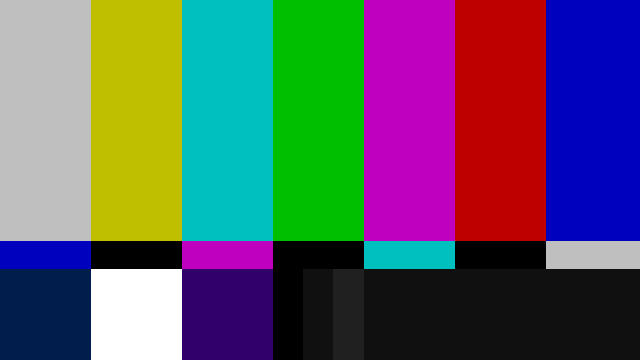
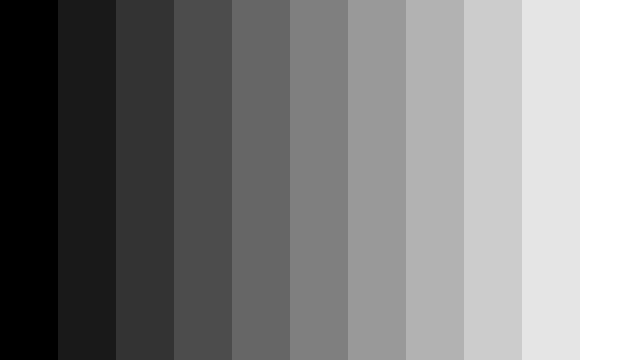
Now change Pattern to grayscale and click the node's run control again. You should see the black-to-white step pattern. Leave Width and Height unchanged so you can compare the results.
Running this node or a selection
The node's header control targets that node. The toolbar's Run Graph uses your current node selection, so select the intended nodes first. With no selection it asks you to select one or more nodes. On a larger graph, required upstream work can also run to supply the selected nodes' inputs.
4. Save the workflow
Choose Save Project in the toolbar, then Save. Wait for the Project Saved confirmation before treating the named version as updated.
Autosave also protects the working session, but it has a different role from an explicit save. Use Save when this named project should contain the current nodes and settings. Save As... creates a separate saved project when you want to keep a variation. See Saving and recovery for autosaves, reopening, and backups.
5. Download the image
In the node's image preview, hold Command on macOS or Ctrl on Windows/Linux, right-click the image, and choose Download. That modifier opens the preview's menu rather than the canvas gesture. If your browser opens the image in a new tab, save the image from that tab.
The downloaded PNG is the result of the run. It does not contain the editable node graph. Keep the saved project as well when you want to change the image again later.
Editable project — Save Project → Save. Keep the nodes, settings, and connections so you can edit the workflow later.
Image file — preview menu → Download. Keep a PNG you can use outside Kaitoi. The image file does not contain the editable graph.
Saving the project and downloading the image are separate actions. Keep both when you need a reusable workflow and a portable result.
For ways to keep outputs inside Kaitoi, continue to Files and results.
If something does not match
| What you see | What to check |
|---|---|
| No image after adding the node | Run it with the header control; this node starts in manual mode. |
| The old pattern after changing Pattern | Finish editing the input, then run again. |
| Run Graph asks you to select nodes | Select Color Bars, or use its own header control. |
| A node error | Read the node's error message, check the three inputs, and correct the cause before retrying. |
| No Download menu | Hold Command or Ctrl while right-clicking the image preview itself. |
| A save or sync error | Keep the tab open and follow the message. Do not assume the named save reached the server. |
Build on this first result
You have created an image, changed an input, rerun the node, saved the workflow, and downloaded a result. Next, find your way around Studio or connect more nodes.
If templates are available on your account, open Browser → Templates and double-click a template. It opens as a temporary project; save your own copy. Review its requirements before running it: other nodes may need provider access or spend credits.
You can also ask Penny in Graph to build a workflow. Say what you want it to create, whether it should stop after building or run the graph too, and any spending constraint. Working with Penny explains that way of building.
Last reviewed against Kaitoi on 24 October 2026. View this page as Markdown